


Got questions?
Broadband FAQs
 WHY ACCOUNT IS NOT ACTIVE AFTER MAKING PAYMENT
- Log-in to Hathway Self Care Portal on www.hathway.com
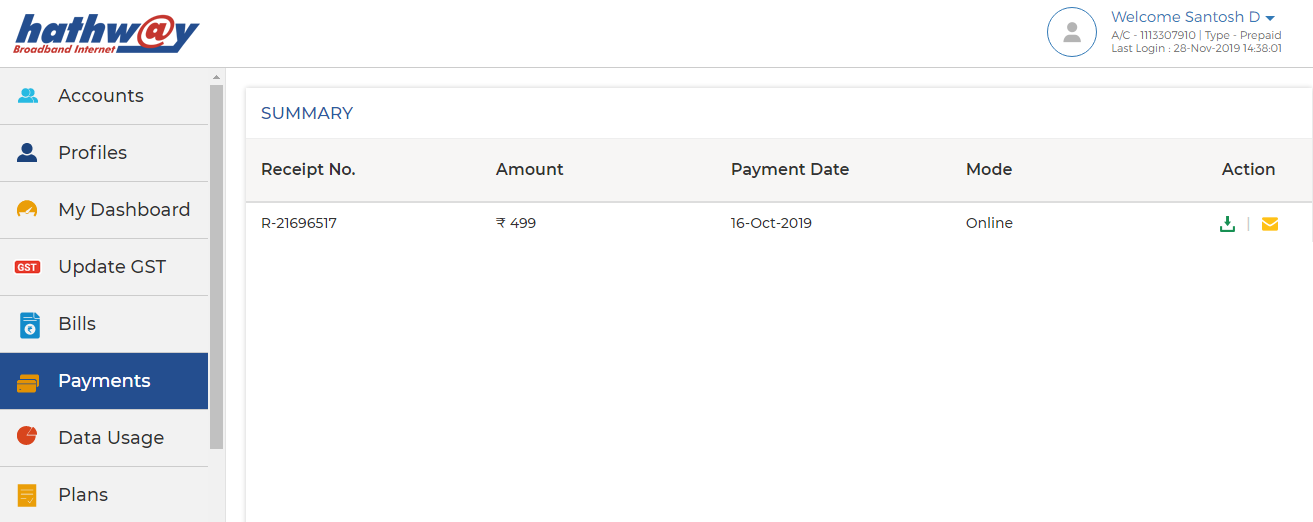
- Click on “Payments” tab on the Left Menu Bar .
- Check whether your Payment is reflecting .
- Online Payments usually get updated within 30 mins to 4 hrs. depending on the Bank / Payment Gateway . Payment thru Cash or Cheque takes 12 hrs. to 24 hrs. to get updated
- If your Payment is not reflecting then wait for the same to be updated
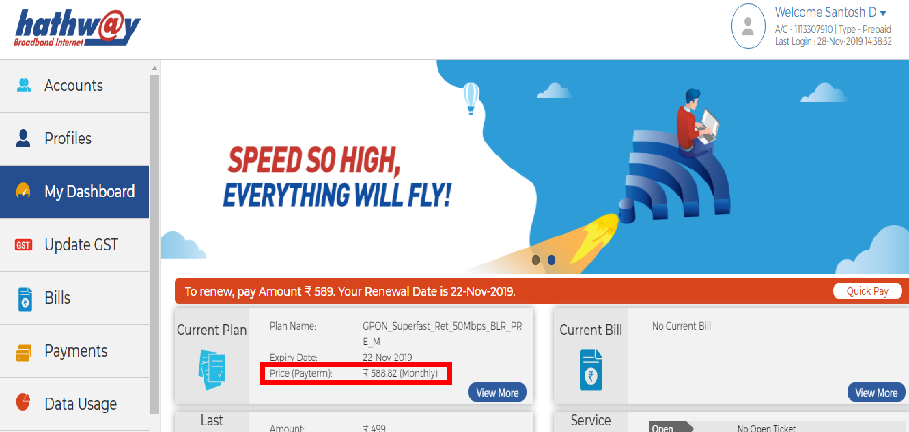
- If your Payment is updated then go to “My Dashboard” on the Left Menu Bar .
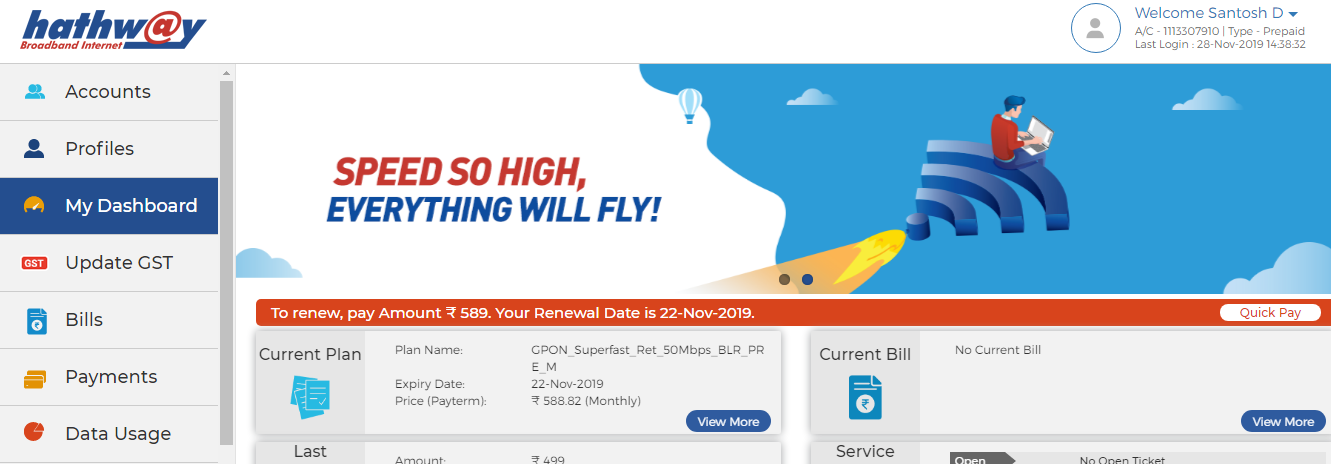
- Check the Renewal Amount under “ Current Plan”.
- If the amount you have paid is same as your Renewal Amount , your account will get auto activated within 30 mins.
- If the amount paid by you is different you may need to pay the differential amount to get your account activated
 HOW TO CHECK MY RENEWAL DATE AND AMOUNT
- Log-in to Hathway Self Care Portal on www.hathway.com
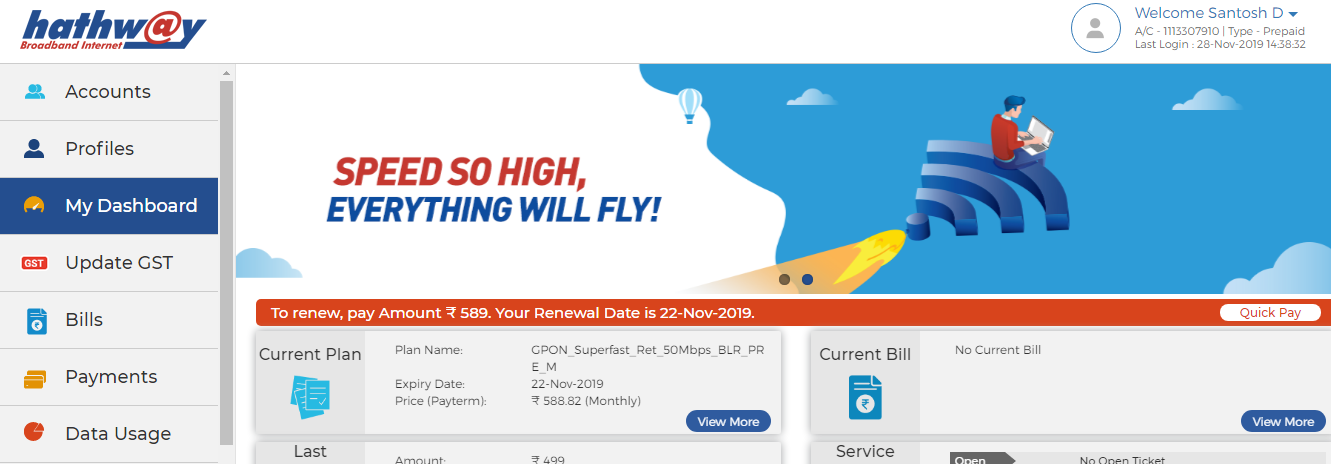
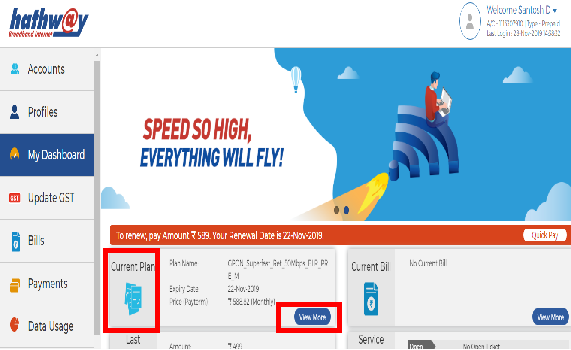
- Go to “My Dashboard” in the Left Menu Bar .
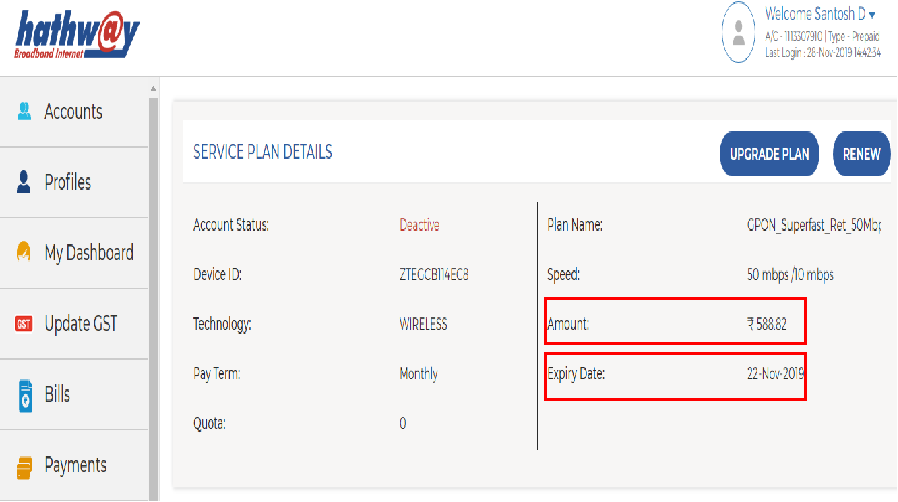
- Click on “View More” under “ Current Plan”
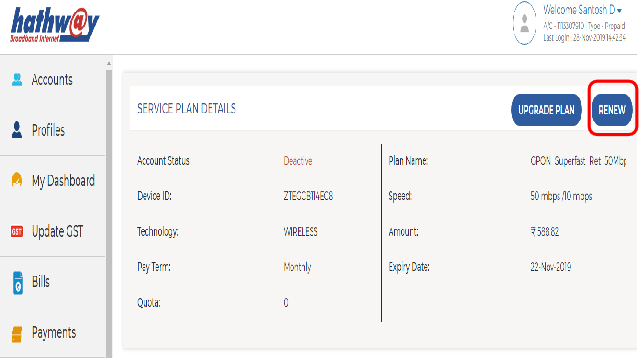
- You will get the Renewal Amount and Your Plan Expiry Date under “SERVICE PLAN DETAILS”
 HOW TO RENEW YOUR PLAN ONLINE
- Log-in to Hathway Self Care Portal on www.hathway.com
- Go to “My Dashboard” in the Left Menu Bar .
- Click on “View More” under “ Current Plan
- Click on “RENEW” option on the Top left hand corner
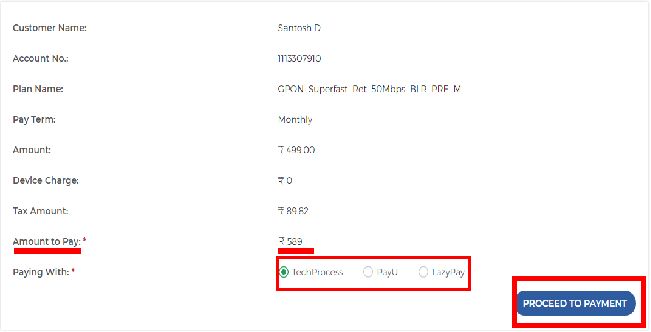
- Check the Total Renewal Amount .
- Select your preferred Payment Gateway.
- Click on “PROCEED TO PAYMENT”
- You will be redirected to the Payment Page.
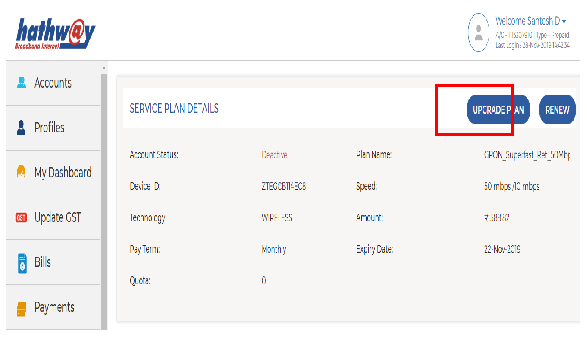
 HOW TO UPGRADE YOUR RENEWAL PLAN
- Log-in to Hathway Self Care Portal on www.hathway.com
- Go to “My Dashboard” in the Left Menu Bar .
- Click on “View More” under “ Current Plan
- Click on “UPGRADE” option on the Top left hand corner
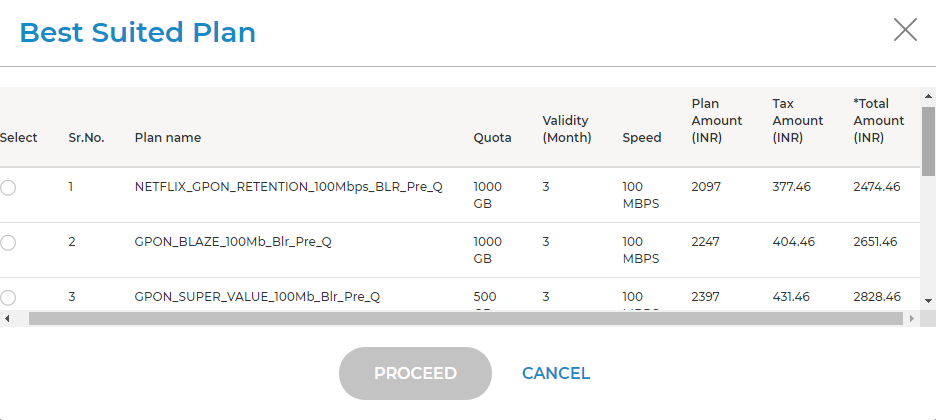
- You will get the Best Suited Plan towards upgrading your Account .
- Select your preferred plan and click on Proceed.
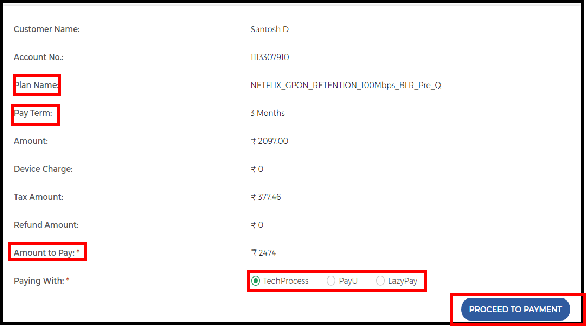
- Check the Total Renewal Amount
- Select your preferred Payment Gateway.
- Click on “PROCEED TO PAYMENT”
- You will be redirected to the Payment Page.
 HOW TO CHANGE YOUR EMAIL ID AND REGISTERED
MOBILE
NO
HOW TO CHANGE YOUR EMAIL ID AND REGISTERED
MOBILE
NO
- Log-in to Hathway Self Care Portal on www.hathway.com
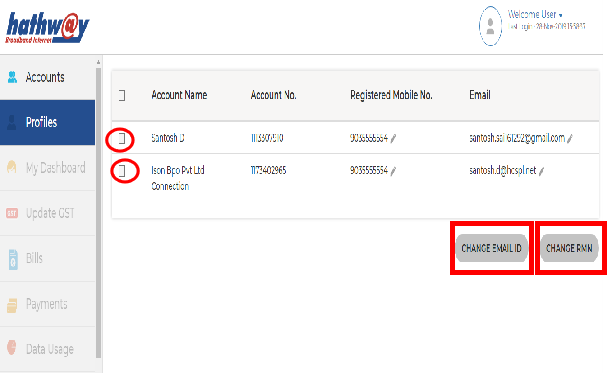
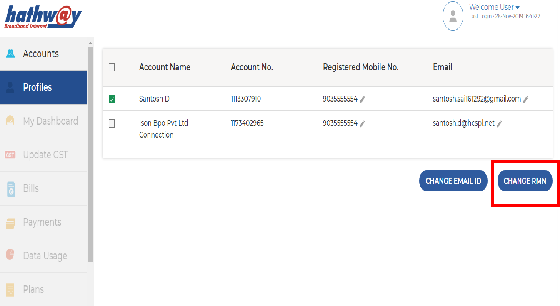
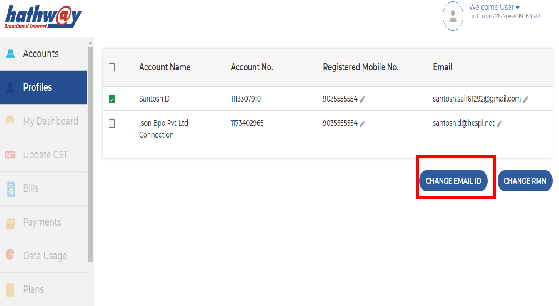
- Go to “Profiles” in the Left Menu Bar .
- You will get your Account Details showing your Registered Mobile No and Email Id.
- If you are having multiple Accounts withbilling-picture14 the same credentials then select the Account for which you wish to change the details .
- Click on the “Pen” symbol to update the new details.
- Click on the correct option from the bottom of the page to save your data .
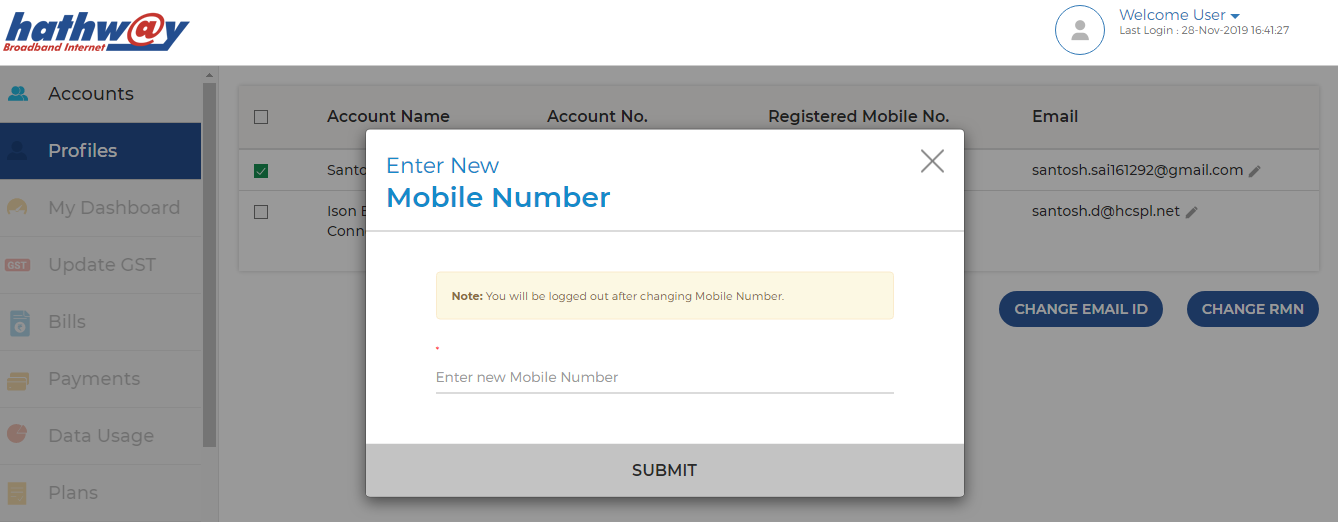
- Click on the “ Change RMN” at the bottom.
- Enter your new Mobile No.
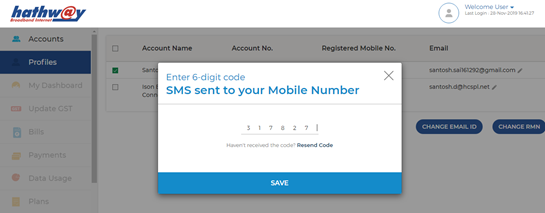
- Enter the OTP sent to your new Mobile No.
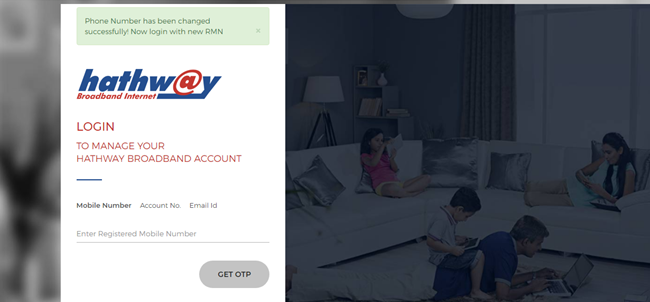
- Re-Login with your new credentials
 HOW TO CHANGE YOUR REGISTERED EMAIL ID
- Log-in to Hathway Self Care Portal on www.hathway.com
- Go to “Profiles” in the Left Menu Bar .
- You will get your Account Details showing your Registered Mobile No and Email Id.
- Click on the “ Change Email id ” at the bottom.
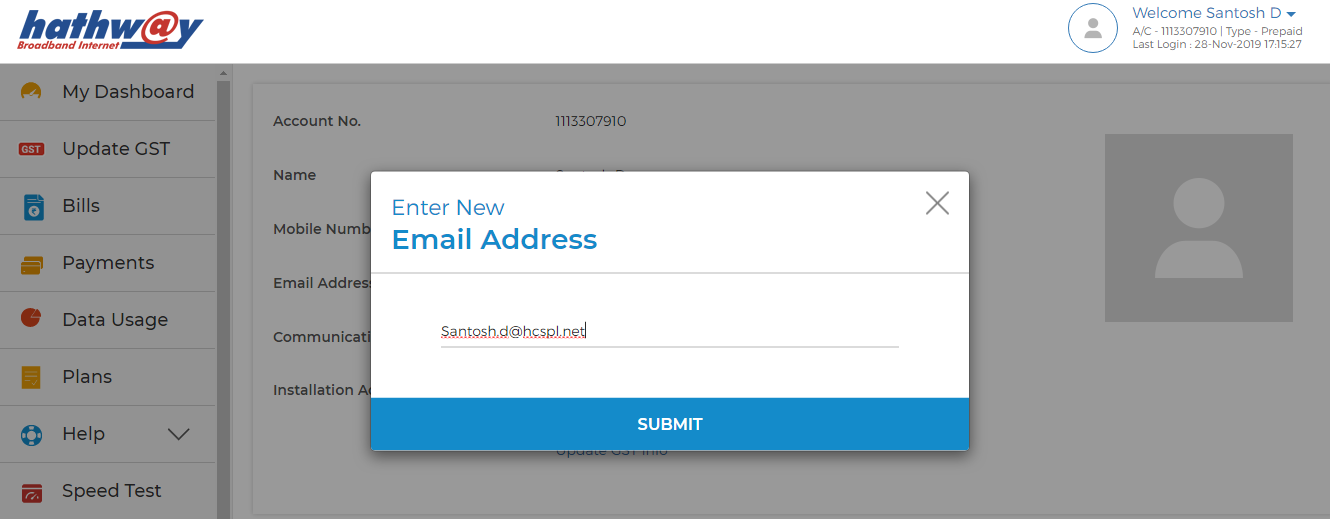
- Enter your new Email id.
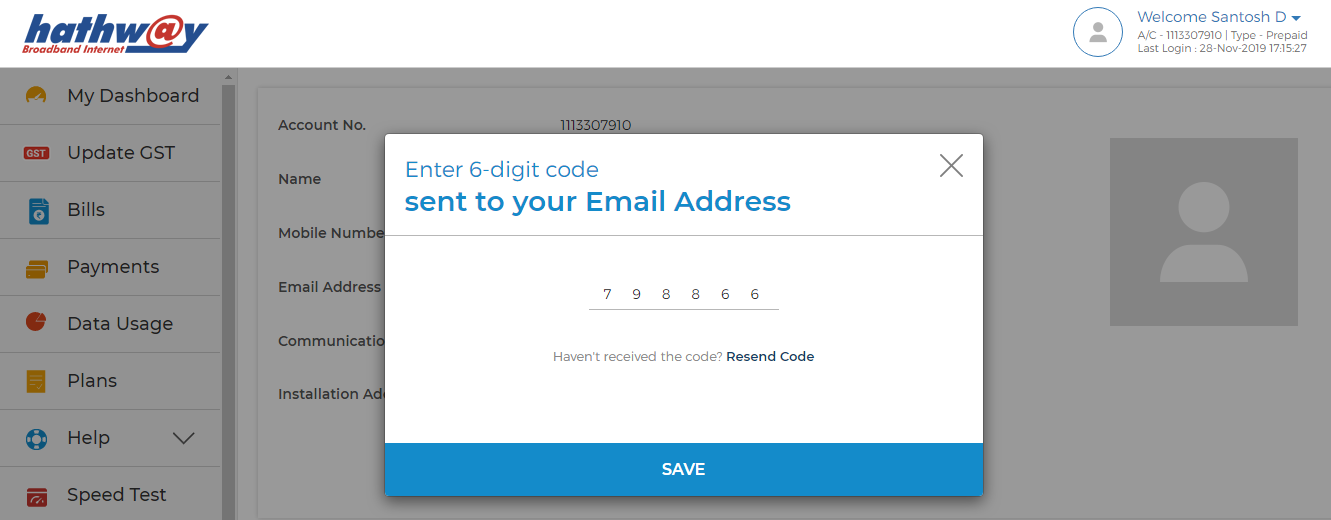
- Enter the OTP sent to your Email id.
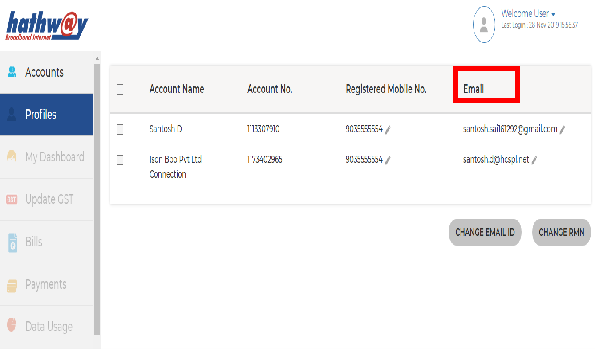
- Go to the “Profile” option and check the new mail id
If you have multiple Accounts then select the concern Account from the List .
 Understand Your Bill
Do you have any feedback for us? Click here to submit
Understand Your Bill
Do you have any feedback for us? Click here to submit
HATHWAY BROADBAND TECHNICAL FAQ
HOW TO CHANGE WI-FI CREDENTIALS ( WIFI NAME / PASSWORD )
IDENTIFY YOUR DEVICE- Identify the Wifi Device Installed at your place . The Device name will be on the front side of the Device and the Model No will be mentioned at the Back Side.
- Choose the Device Type from the List mentioned below
- Device Make : ZTE Model No F660 Model No F602W Model No 612W
- Device Make : Genexis Model No Platinum 4410
- Router Make : TENDA Model No AC1200 A9
- Router Make : TP LINK Model No TL WR850N
- Router Make : DLINK Model No DIR615 , Model No DIR842
INTEGRATED WI-FI DEVICES
WI-FI ROUTERS
PASSWORD FORGOTTEN:ZTE F660 /F602W / 612W ,
GENEXIS 4410- Reset your ZTE ONU by pressing the “Reset” button with a pointed object for 10 seconds.
- The “Reset” button will be next to the “Power” button.
- Note down the Default WI-Fi user id and password mentioned at the back of the ONU.
- Click on the Wi-fi option in your system , chose the default user id as mentioned in your device.
- Type the default password mentioned in your device and connect.
- Once you are connected you may re-configure your Wi-Fi credentials by following the instructions mentioned below
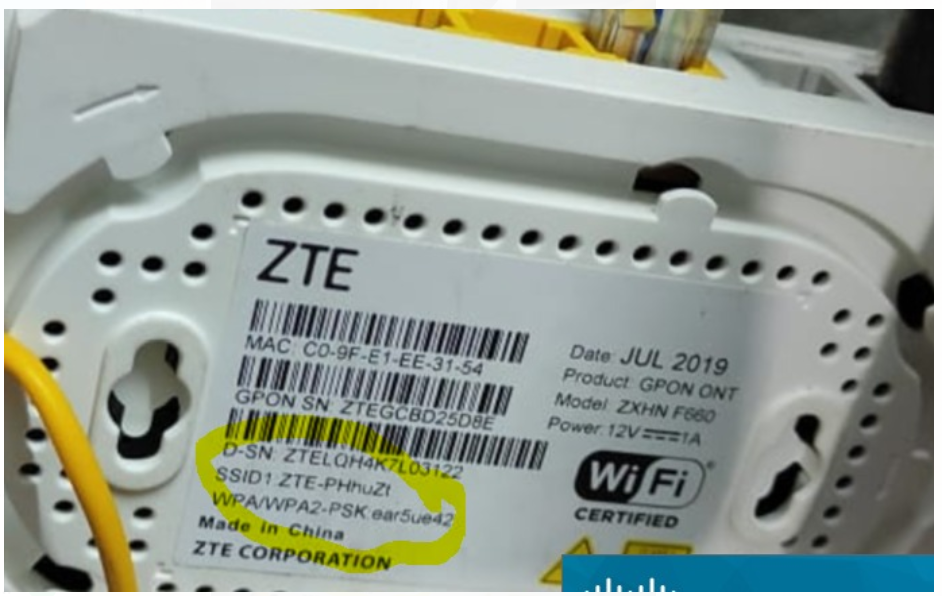 TO CHANGE WIFI CREDENTIALS FOR ZTE F660 /F602W
/ 612W
TO CHANGE WIFI CREDENTIALS FOR ZTE F660 /F602W
/ 612W- Connect to Wi – fi.
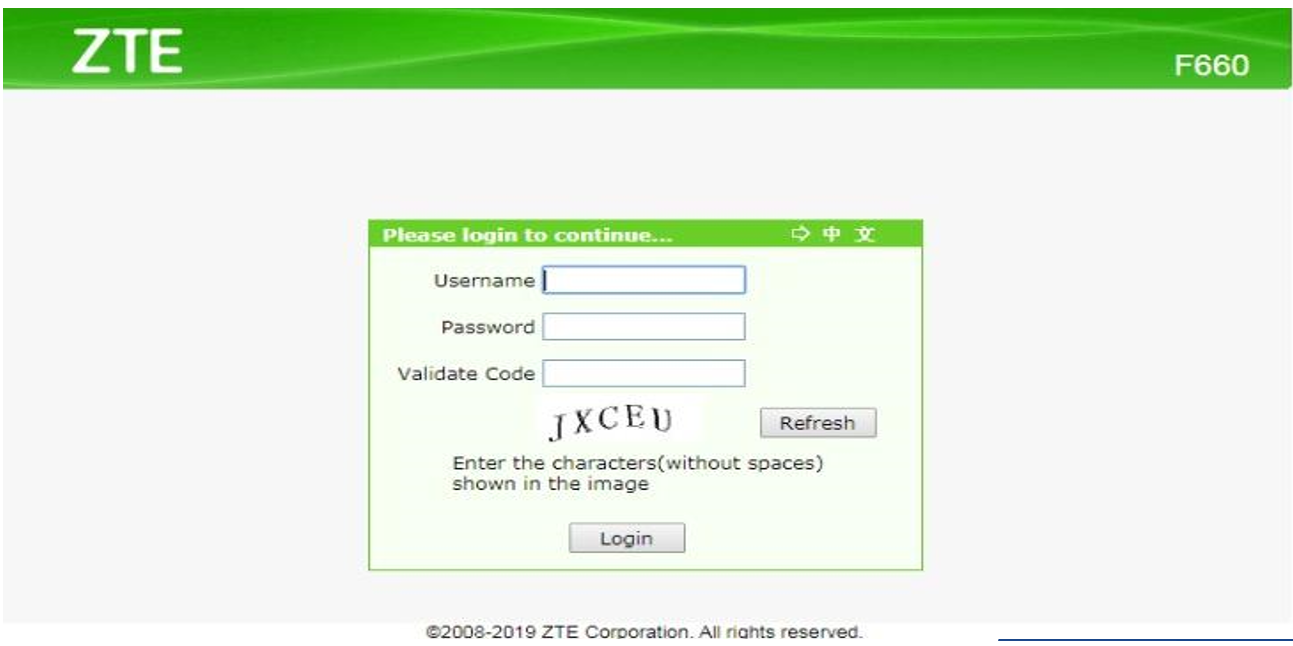
- Open the web browser (Internet Explorer/Mozilla Firefox) Type in the address bar 192.168.1.1.
- ZTE page will open.
- The default Username of the device will be “Admin”.
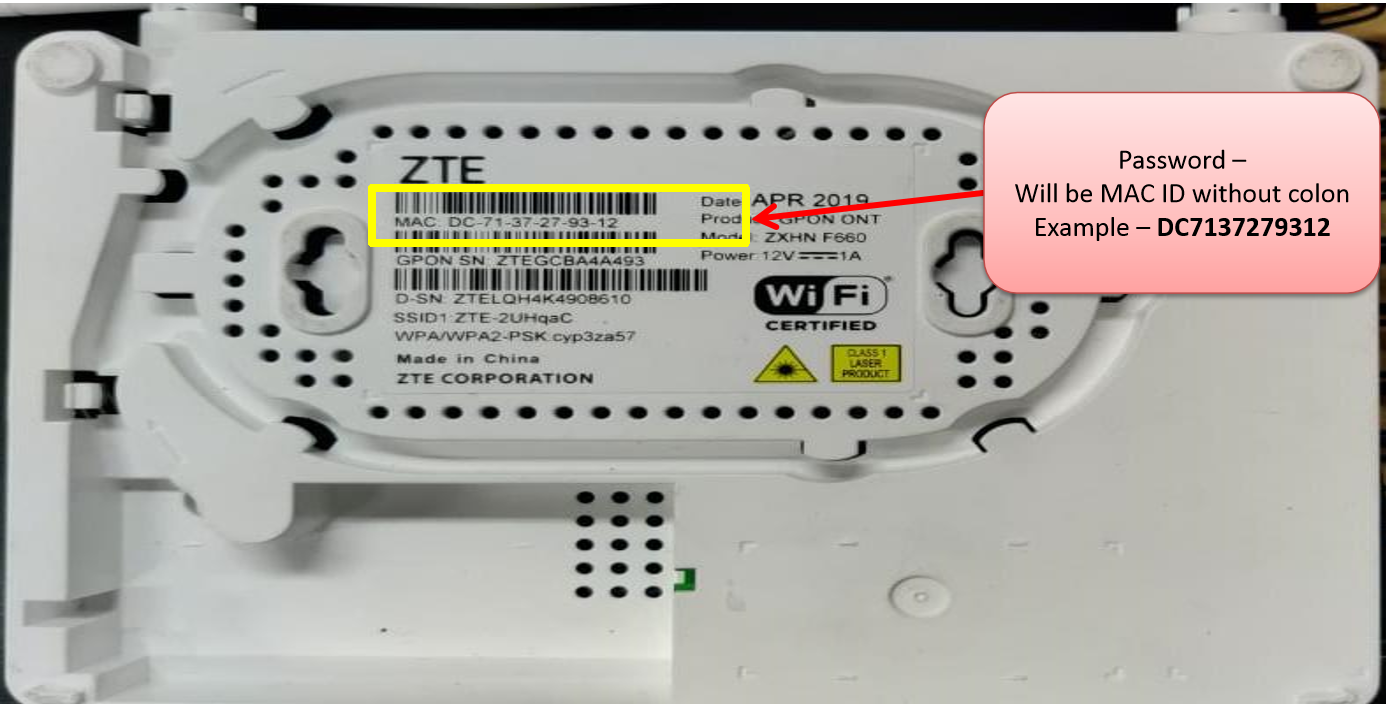
- The default Password will be MAC ID which will be on the back side of the Device
- Password will be a 12 digit no without any special characters . The password for the below device will be DC7137279312.
 TO CHANGE WIFI CREDENTIALS FOR ZTE F660 /F602W
/ 612W
TO CHANGE WIFI CREDENTIALS FOR ZTE F660 /F602W
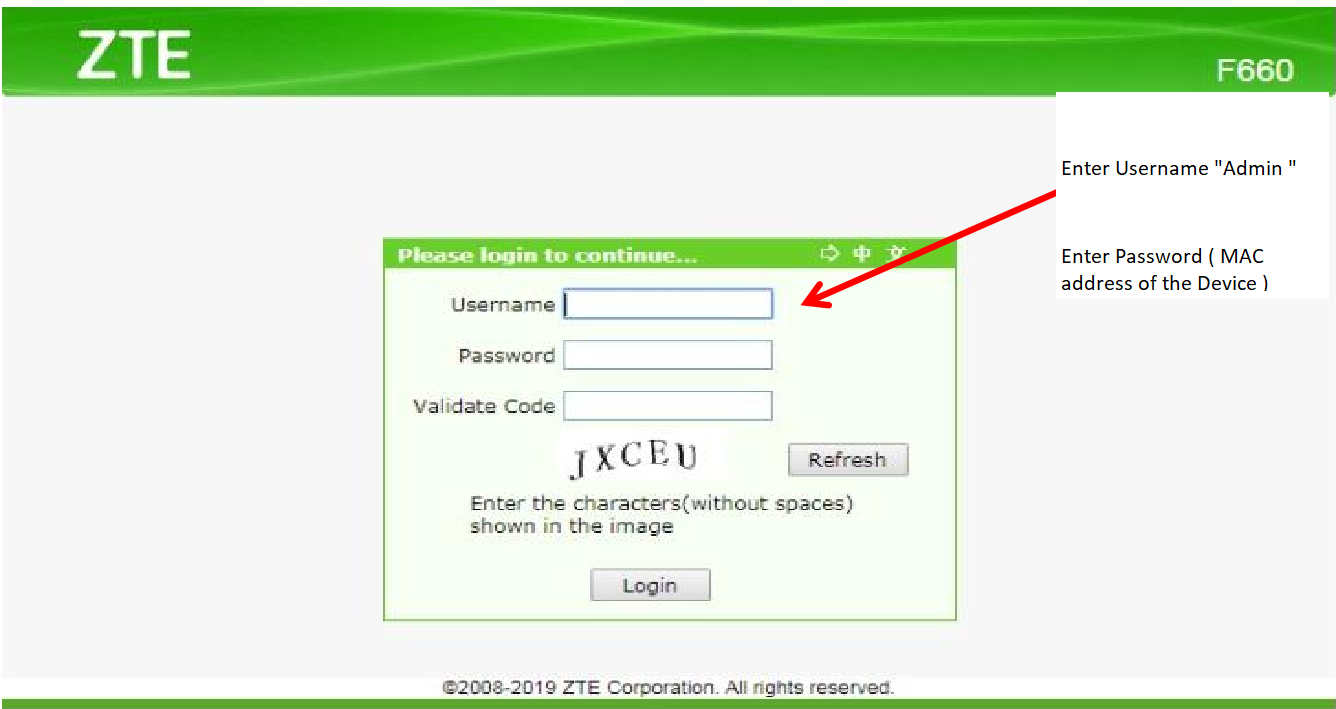
/ 612W- Enter User Name - “Admin”.
- Password (MAC ID with out Special Characters )
- Enter the Captcha as mentioned below.
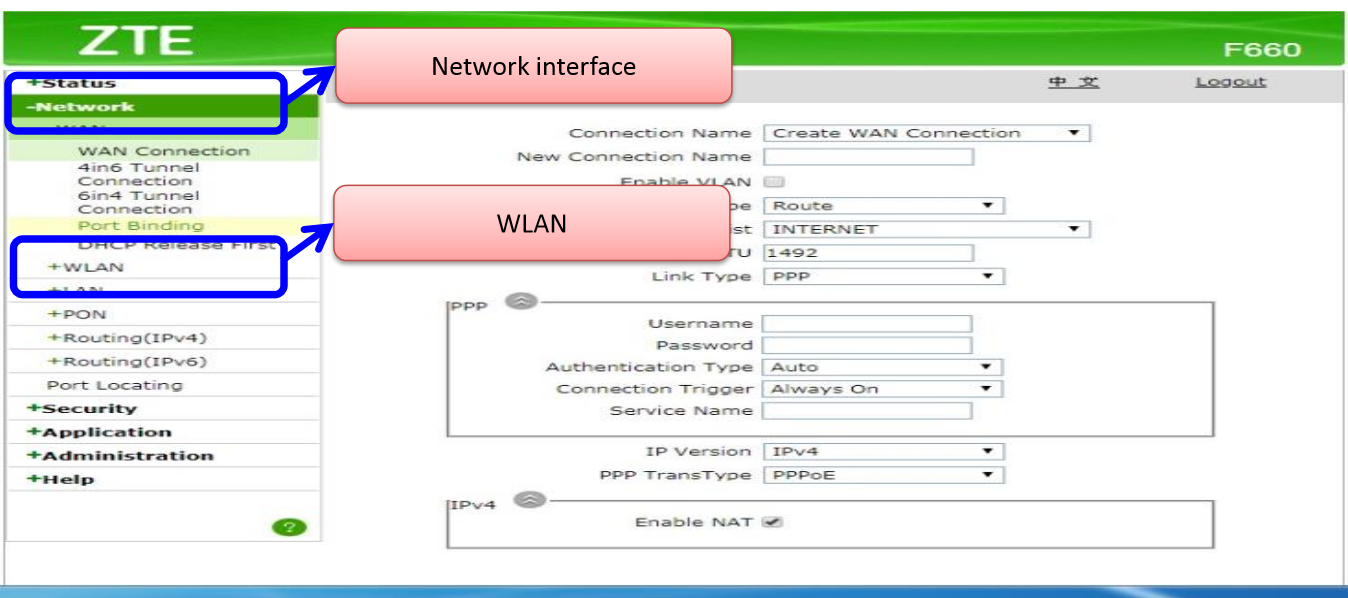
- Click on Network Interface.
- Click on WLAN option.
- Enter User Name - “Admin”.
- Password (MAC ID with out Special Characters )
- Enter the Captcha as mentioned below.
- Click on Network Interface.
- Click on WLAN option.
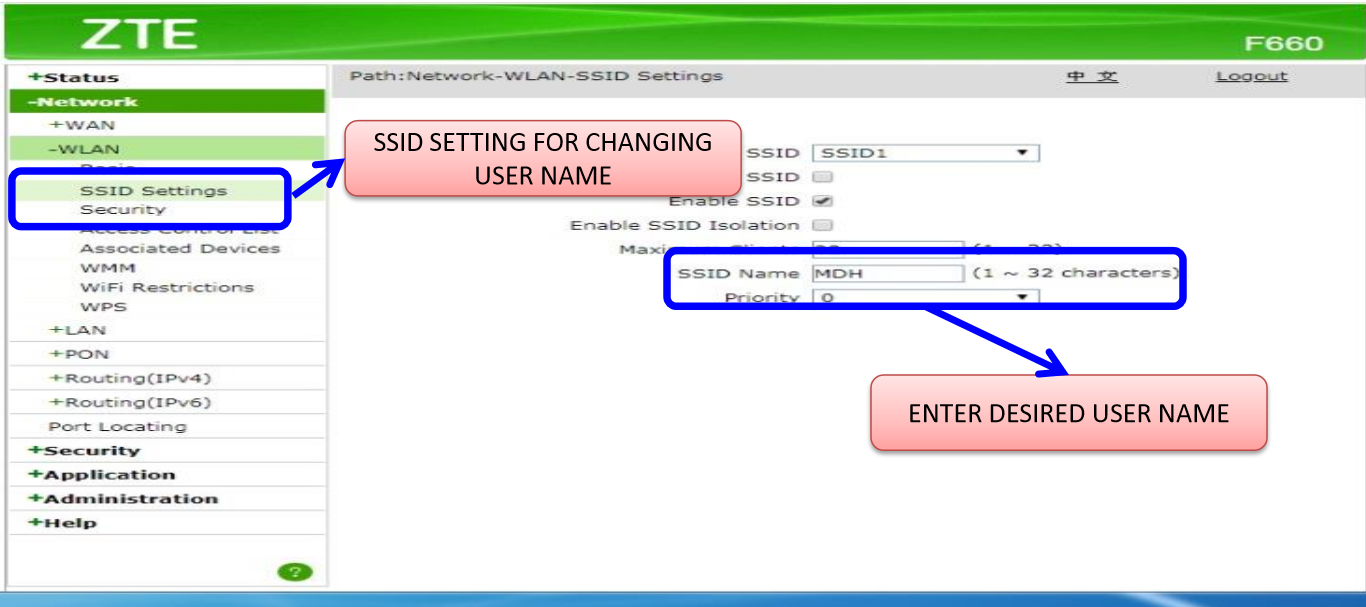
- To set your Wi-Fi name ,Click on “SSID Settings”
- Type your desired Wi-Fi name in the option provided as “SSID Name”.
- Your Wi-Fi name is configured . Confirm that the “Hide SSID” option is not checked . This will hide your Wi-Fi from all connected devices.
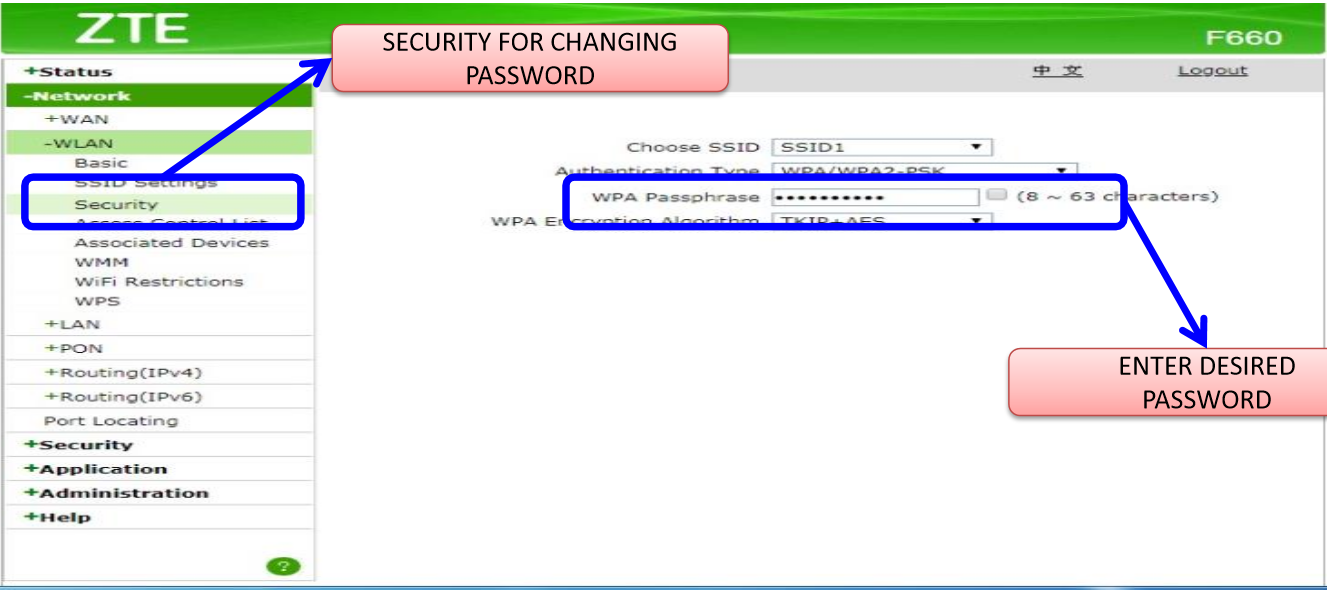
- To set your Password , click on “Security” under “SSID Settings”.
- Go to “WPA Passphrase “ option mentioned on the right . Enter your desired password . Your password length has to be between 8 to 63 characters with at-least 1 Special Character & 1 Upper Case . Click on “Submit” to save your settings.
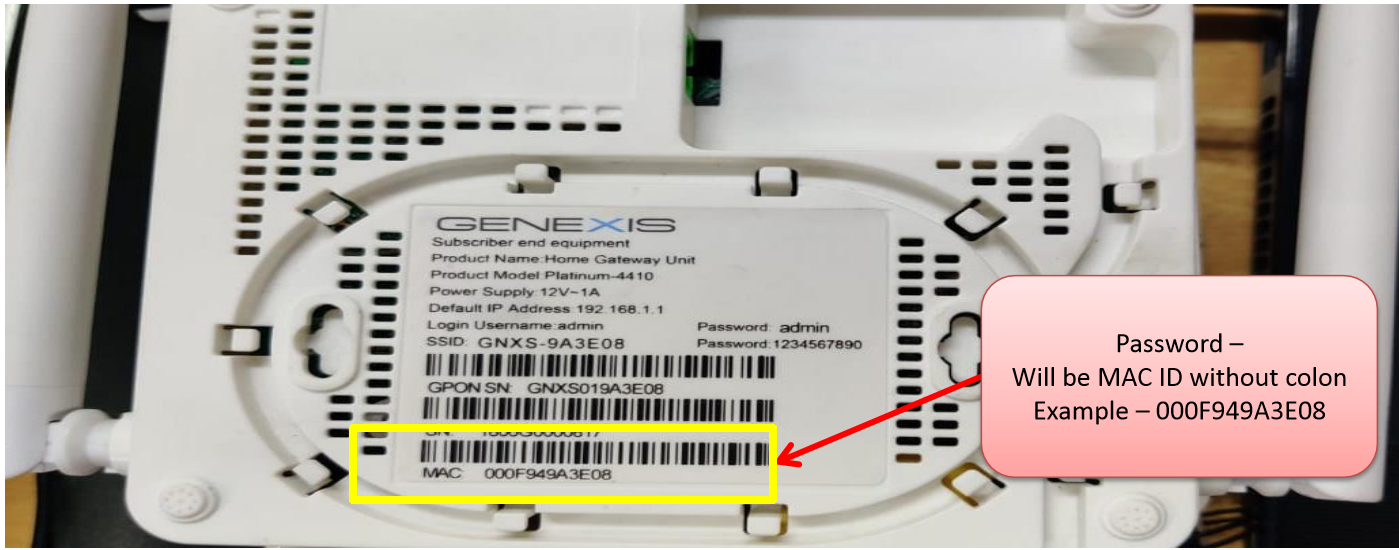
 TO CHANGE WIFI CREDENTIALS FOR GENEXIS 4410
- Connect to Wi – fi.
- Open the web browser (Internet Explorer/Mozilla Firefox) Type in the address bar 192.168.1.1.
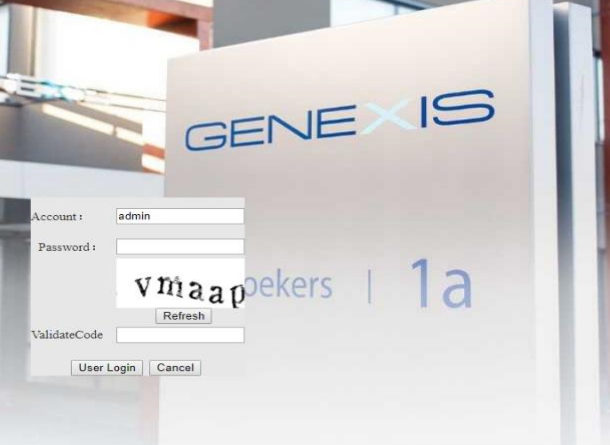
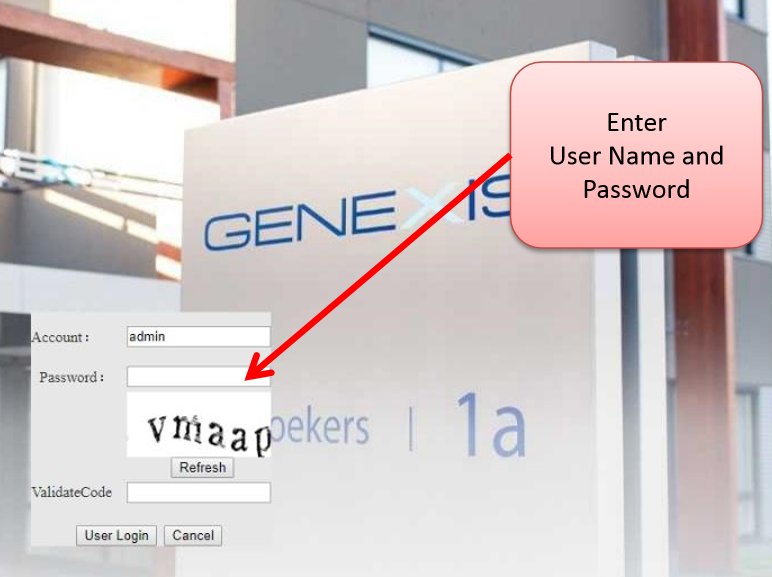
- GENEXIS page will open
- The default Username of the device will be “Admin”
- The default Password will be MAC ID which will be on the back side of the Device.
- Password will be a 12 digit no without any special characters . The password for the below device will be 000F949A3E08.
- Enter User Name - “Admin”
- Password (MAC ID with out Special Characters )
- Enter the Captcha as mentioned below.
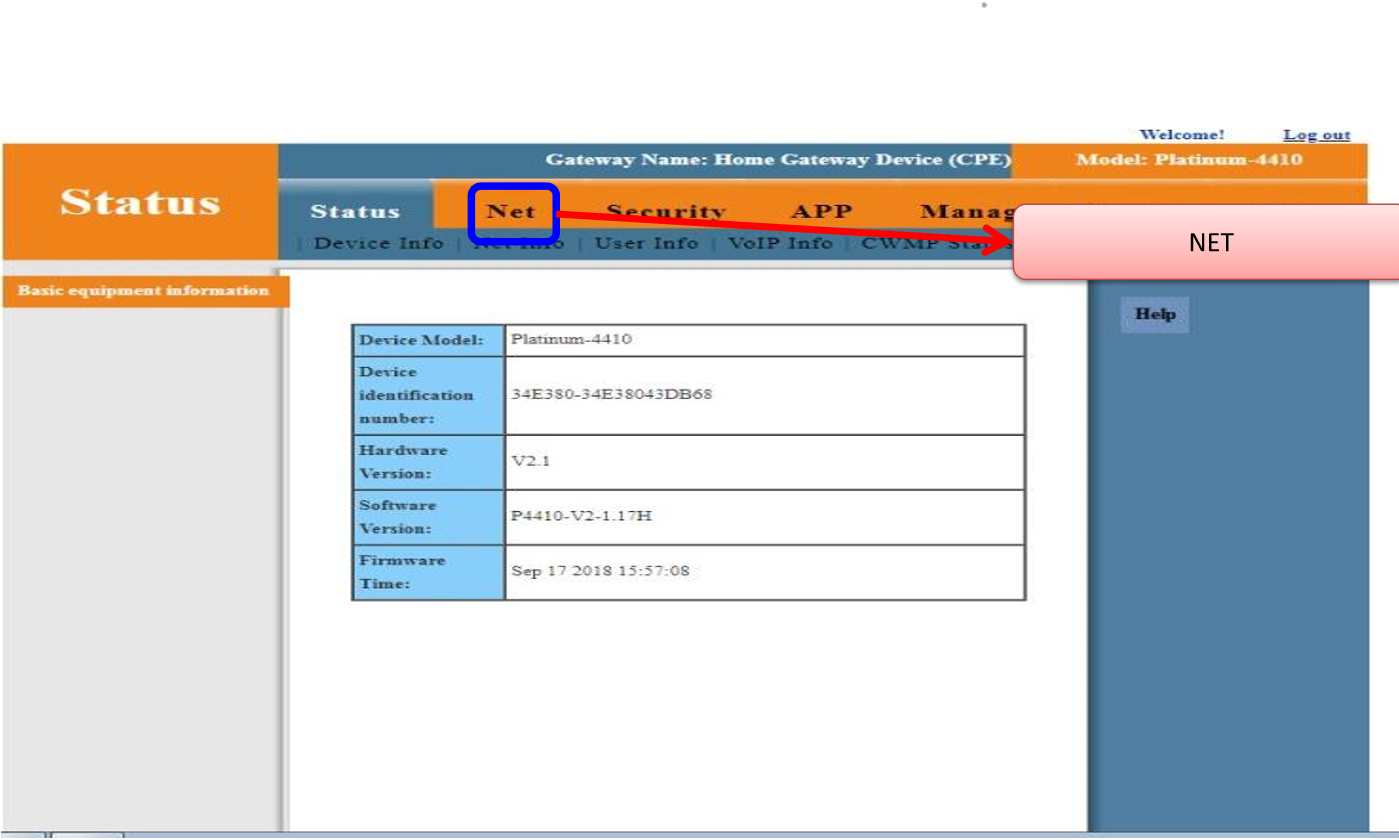
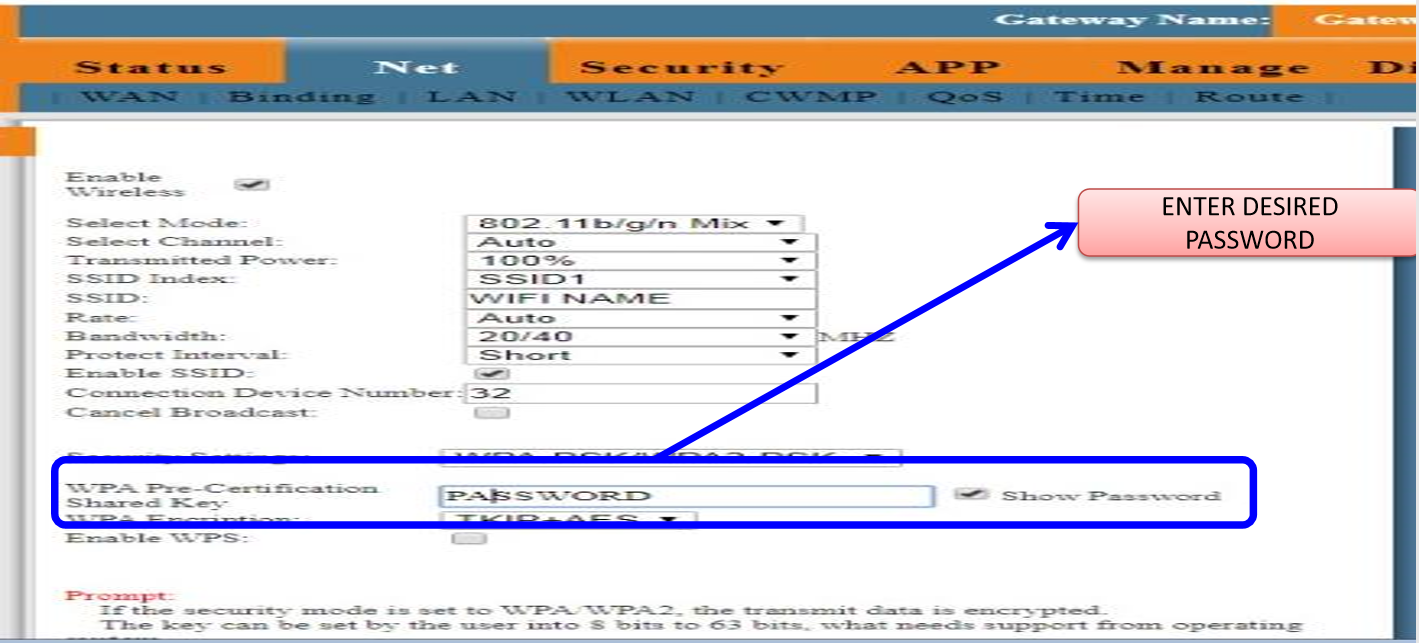
- Click on the Tab “Net” on the Top of the Page
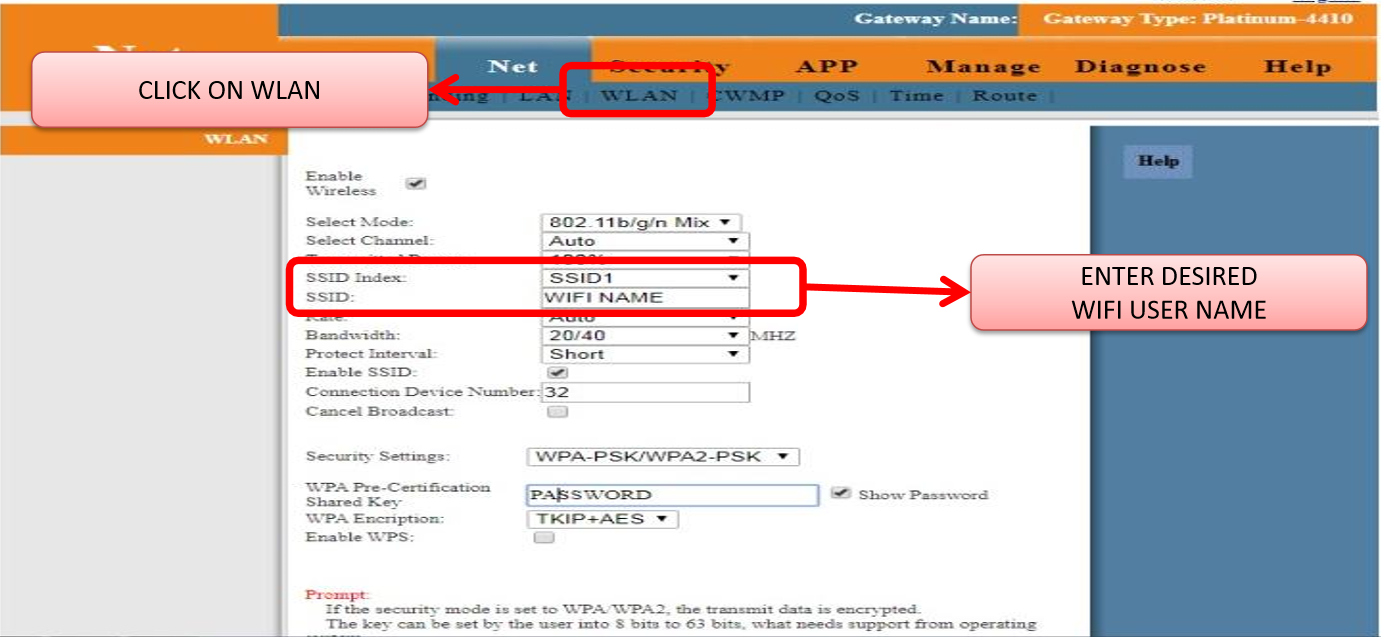
- Click on the “LAN” option on the Top.
- Go down to the “SSID” option mentioned below.
- Type your desired WI-Fi Name in the box next to it.
- To change the password go to the option “WPA Pre-Certification Shared Key”
- Please enter your desired password in the Box given . Your password length has to be between 8 to 63 characters with at-least 1 Special Character & 1 Upper Case . Click on “Submit” to save your settings.
 TO CHANGE WIFI CREDENTIALS FOR TENDA AC 1200 A9
- Connect to Wi – fi.
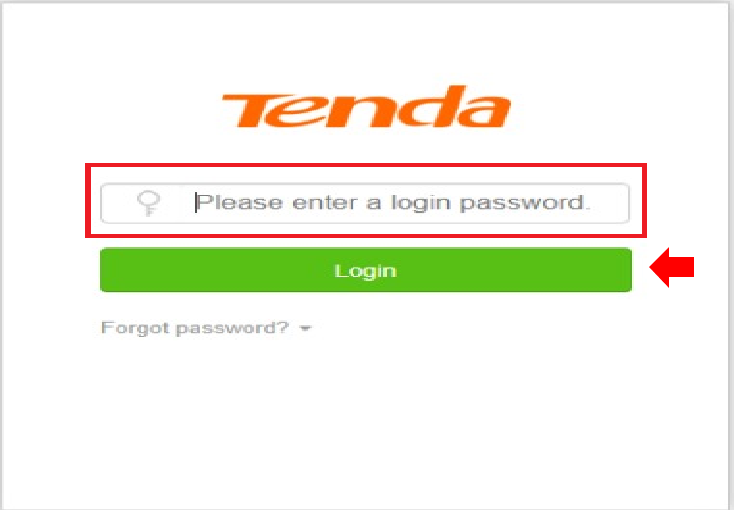
- Open the web browser (Internet Explorer/Mozilla Firefox) . Type in the address bar 192.168.0.1.
- TENDA WIFI ROUTER page will open
- Please enter your current password in the box provided for the same and click on Login
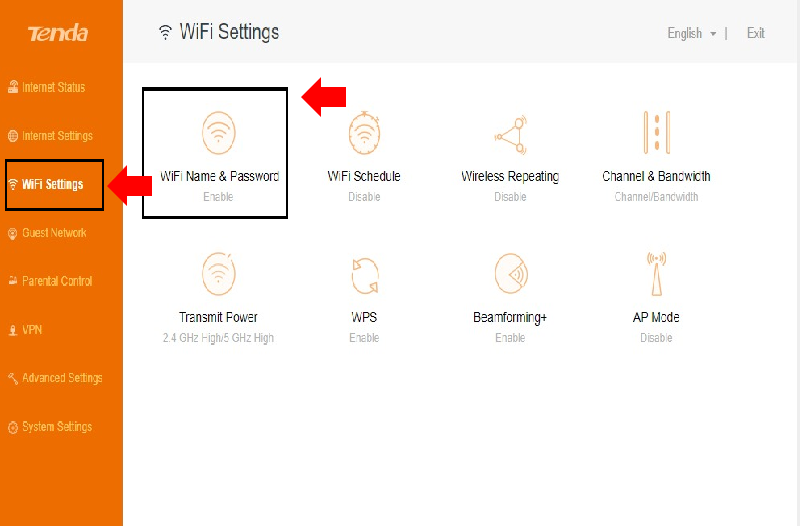
- Click on “Wifi Settings” on the left hand side of the page.
- Select “Wifi Name & Password” option.
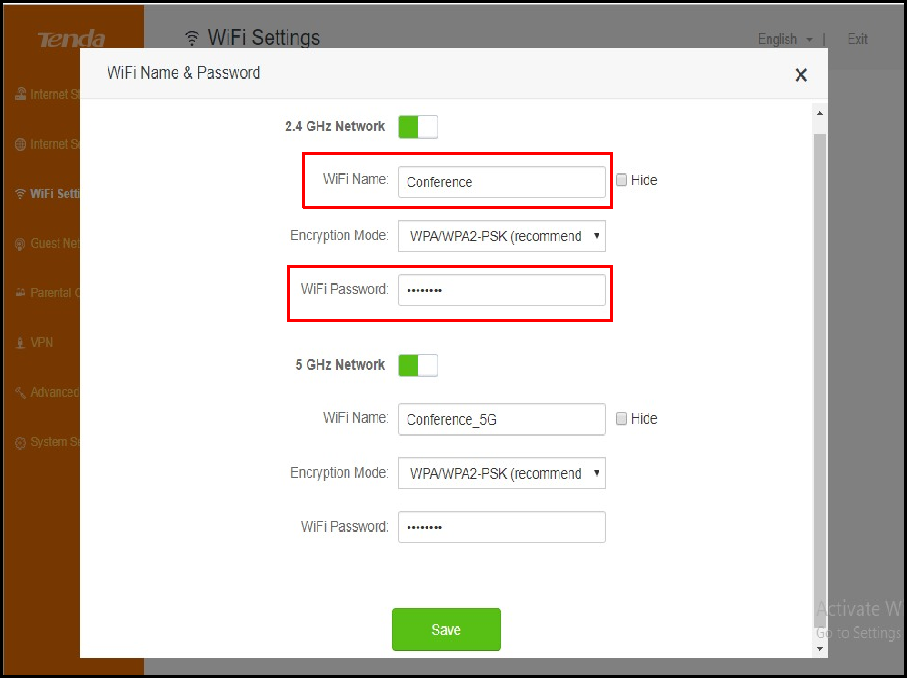
- Type your desired Wi-fi name in the Box next to “WIFI Name”
- Select the Encryption Mode as WPA/WPA2-PSK (recommended) .
- Type your desired Wi-Fi password in the Box next to “WiFi Password “ (for better security password should contact one upper case letter, one special character, one numeric number
- Click on “Save” button once the changes are done.
- Note: For 2.4GHz and 5GHz for same procedure for WiFi configuration.
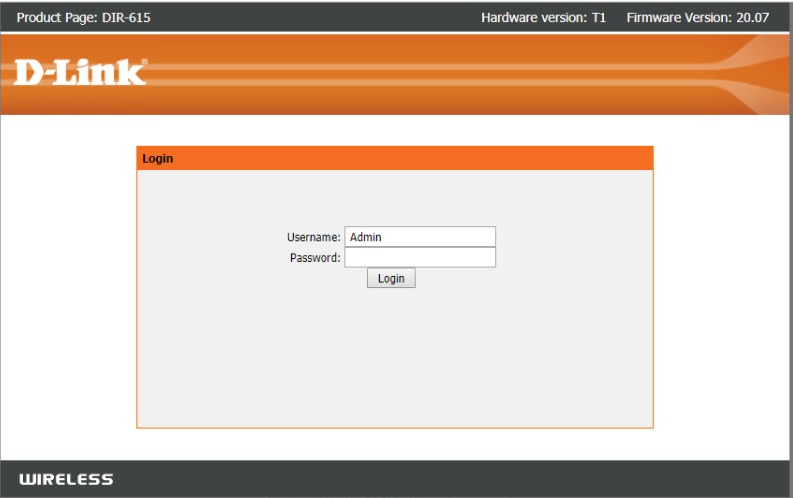
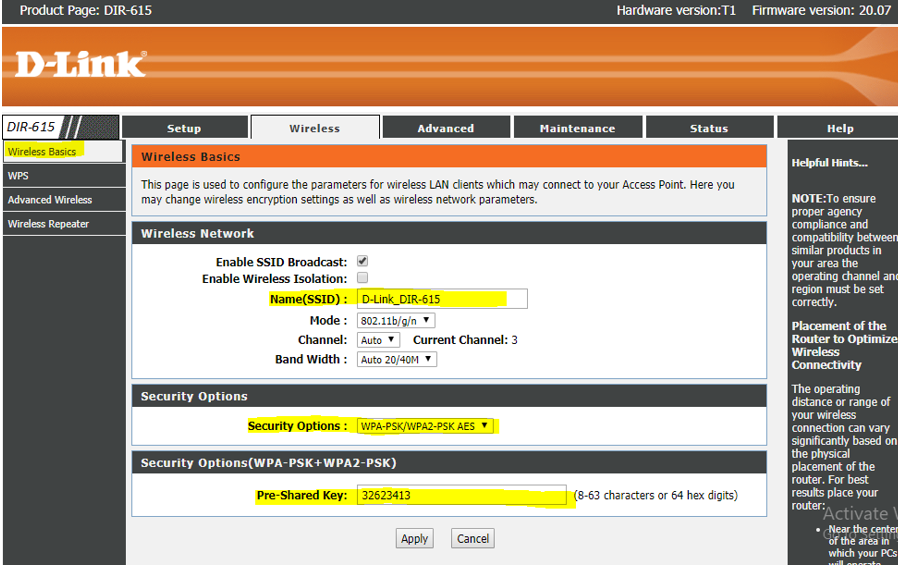
 TO CHANGE WIFI CREDENTIALS FOR DLINK DIR 615
- Connect to Wi – fi . Open the web browser (Internet Explorer/Mozilla Firefox). Type in the address bar 192.168.0.1.
- Enter the default Username “Admin” or your current user name.
- Enter the default Password which may be the MAC id of the Device , mentioned at the Back side of the Device or your current password
- Select “WIRELESS” on the Main Menu, select “Wireless Basics ”.
- Enter your preferred Wi-Fi name in the Box next to “Name ( SSID )”
- Enter your Preferred Password in the Box next to “Pre-Shared Key”.
- Click on “Apply” to save your configurations
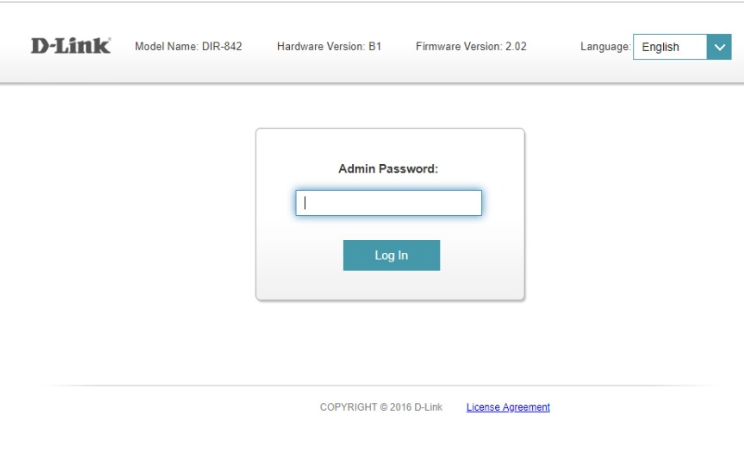
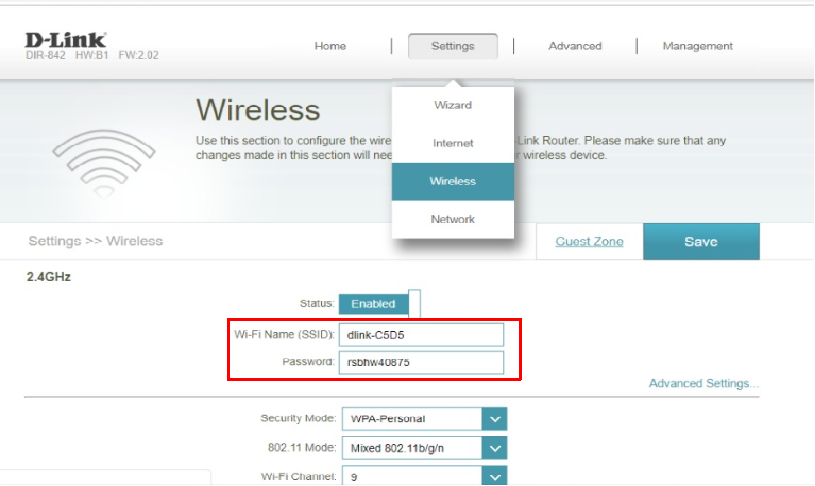
 TO CHANGE WIFI CREDENTIALS FOR DLINK DIR 842
- Connect to Wi – fi . Open the web browser (Internet Explorer/Mozilla Firefox) . Type in the address bar 192.168.0.1.
- Enter your existing Wi-Fi password under “Admin Password” and click on Login.
- Click on “Settings” on the Main Menu, select “Wireless”
- Enter your preferred Wi-Fi name in the Box next to “Wi-Fi Name ( SSID )”
- Enter your Preferred Password in the Box next to “Password”
- Click on “Save” to save your configurations
I AM NOT GETTING PROPER SPEED ON WIFI, WHAT SHOULD I DO ?
STEPS TO IMPROVE THE INTERNET SPEED ON YOUR
WI-FI
To improve Speed on Wi-Fi , follow the below steps :-
- Do a speed Test of your connection.
- If your speed Test results look lower than expected , then check the Wi-Fi Settings of your Device.
- If your speed Test results look lower than expected , then check the Wi-Fi Settings of your Device . Distance from your Wi-Fi Positioning of your Wi-Fi . Wi-Fi signal interference
- Check for multiple Devices connected to the same Wi-fi simultaneously.
- Do a health check of your PC / Laptop
HOW TO DO A SPEED TEST OF YOUR CONNECTION
To improve Speed on Wi-Fi , follow the below steps :-
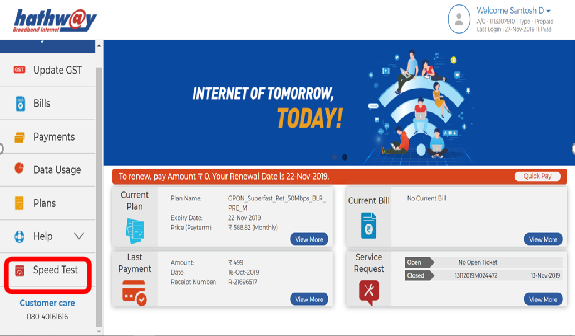
- Go to www.hathway.com , logg-in to Hathway Selfcare through your registered Mobile No.
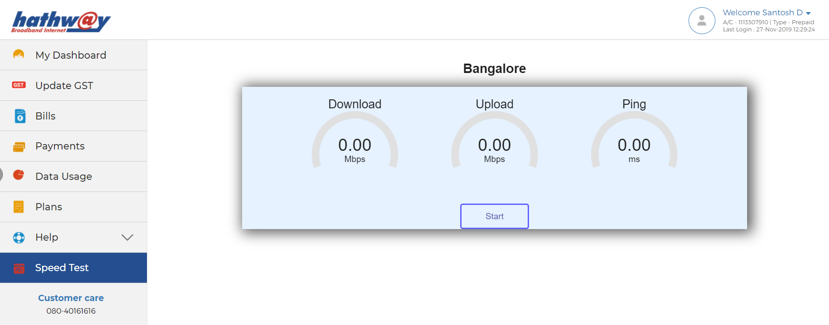
- Click on the “Speed Test” option in the Left Menu You may also directly open www.speedtest.hathway.com to do Speed.
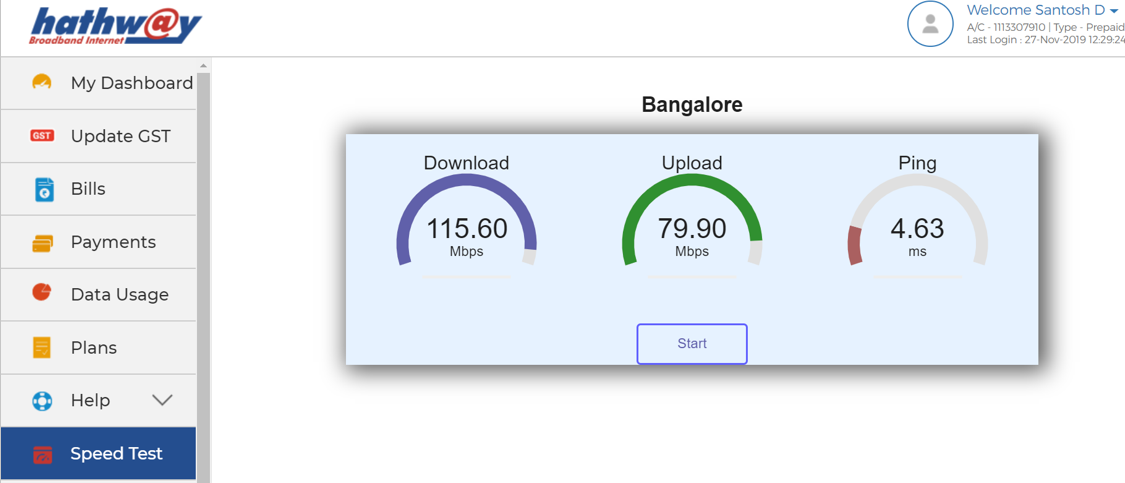
- Click on “Start” to commence the Speed Test.
- Please ensure that you are only using a single device at the time of doing a Speed Test . Disconnect all other devices from the Wi-Fi.
- The Speed Test is completed once the values are reflected for Download , Upload and Ping options
- Devices (phones, tablets, PCs, etc…) can have very different Wi-Fi and cellular radio capabilities. This means you might get one Speed test result on one device and a different result on another, even using the same provider.
- Speed Test results may be low if you’re running any ongoing downloads or other programs like video chat that might be hogging your bandwidth. Close those and test again.
- Speed test is measuring your real-time network connection, so tests taken within a few minutes of each other might vary a little based on network congestion and available bandwidth.
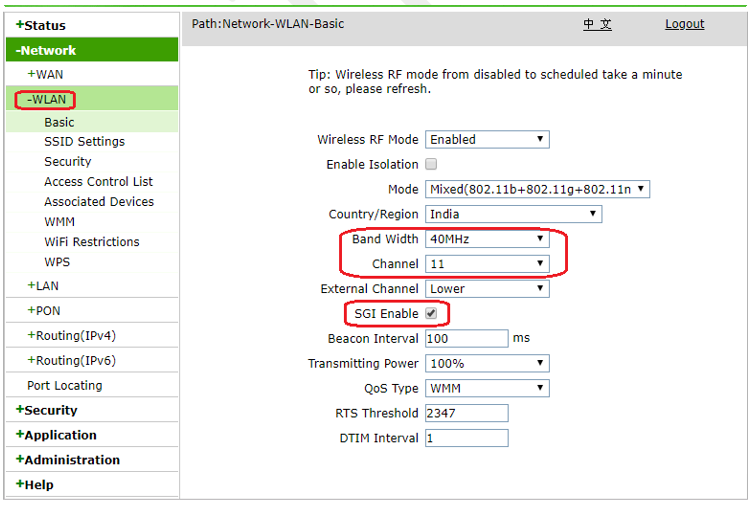
 DEVICE WIFI SETTINGS - FOR ZTE F660/602W/612W
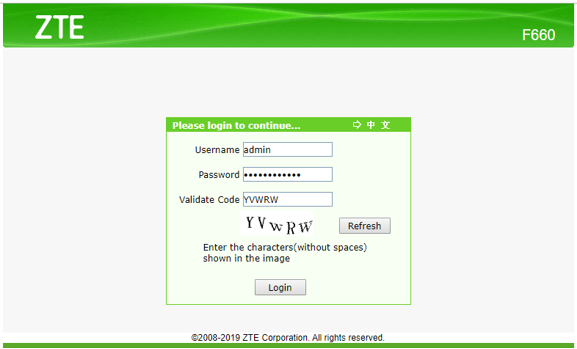
- Open web browser and enter the IP 192.168.1.1
- Enter the Default Username: “admin”
- Enter the Default Password: The MAC address of the Device (Mentioned on back of ONU)
- Password will be a 12 digit no without any special characters . For Example “DC7137279312”
- Validate Code: As shown in login page
- Select “NETWORK” on the Main Menu
- Select “WLAN” in Sub Menu.
- Select Band width: 40MHz & Channel: 9 or 11
- Enable SGI : Enable . Click on “SUBMIT” If the Settings of your Device is already reflecting the same , then your device is already configured to deliver the best wifi speed . Pls follow the general Wifi guidelines
 DEVICE WIFI SETTINGS - FOR GENEXIS 4410
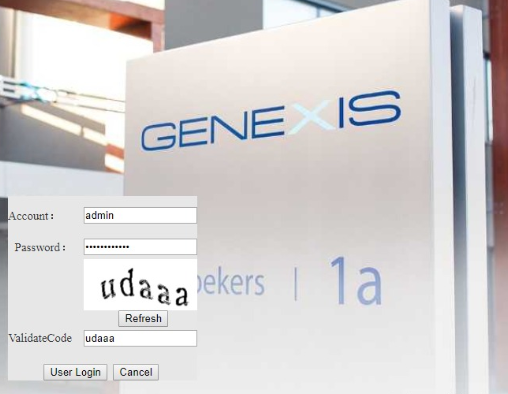
- Open web browser and enter the IP 192.168.1.1
- Enter the Default Username: “admin”
- Enter the Default Password: The MAC address of the Device (Mentioned on back of ONU) Password will be a 12 digit no without any special characters . For Example “DC7137279312”
- Validate Code: As shown in login page
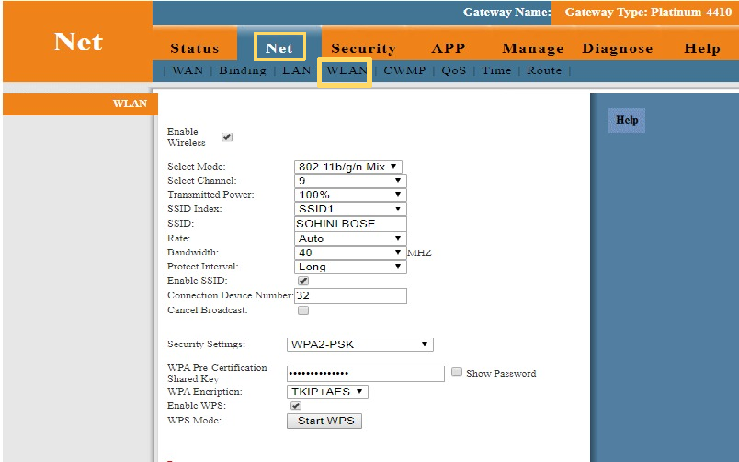
- Select “Net” on the Main Menu
- Select “WLAN” in Sub Menu.
- Select Band width: 40MHz & Channel: 9 or 11
- Click on “SUBMIT” If the Settings of your Device is already reflecting the same , then your device is already configured to deliver the best wifi speed . Pls follow the general Wifi guidelines
 HOW TO CORRECT THE POSITIONING OF YOUR WI-FI
DEVICE
HOW TO CORRECT THE POSITIONING OF YOUR WI-FI
DEVICE
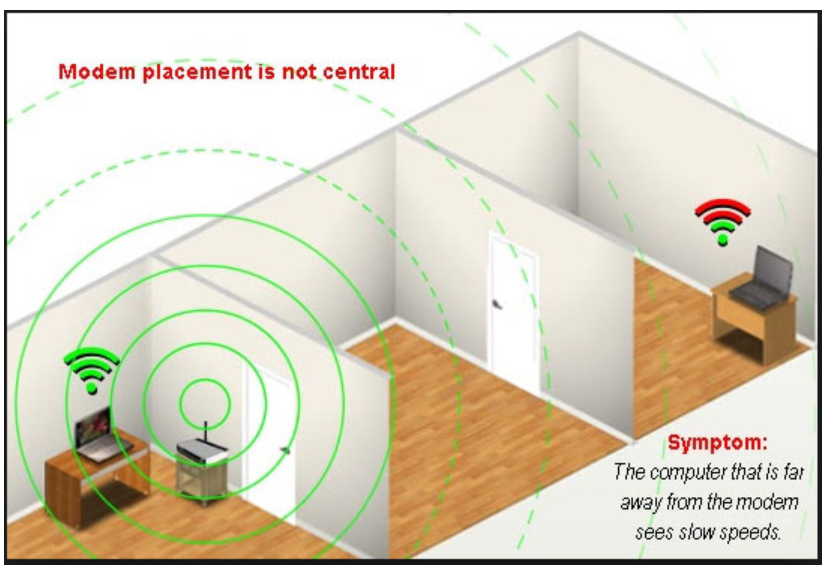
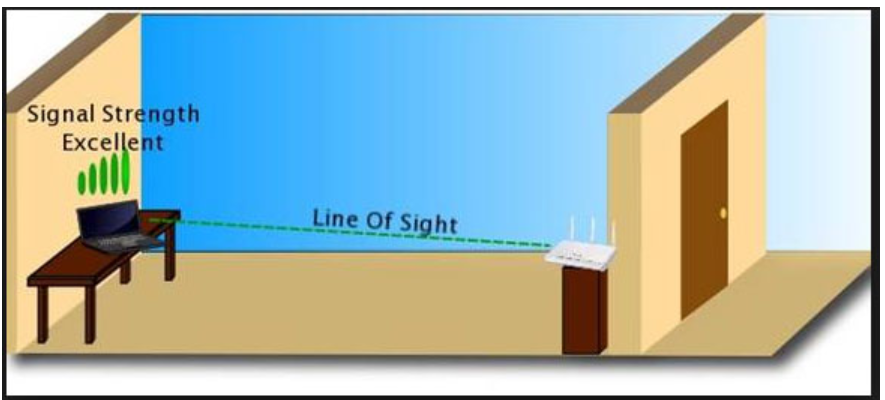
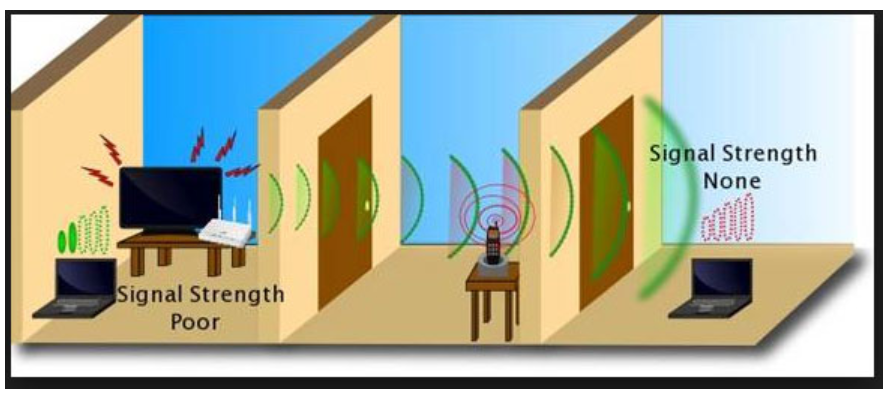
- Distance from your Wi-Fi The further you are from your router, the weaker the signal and the slower the connection – especially if your house has thick walls. Get closer for a better signal. Wood, plaster, and glass don't interfere much with wireless signals; brick, tile, and concrete can be more of a problem.
- Positioning of your Wi-Fi. Your signal comes from the front of the router, so make sure your router is facing in to your home. It shouldn’t be positioned on its side and the antenna should point upwards. Try placing your router on a table or shelf, rather than the floor and make sure it’s free of obstructions like furniture or books.
- Wi-fi signal interference It’s also a good idea to avoid electrical and signal interference. Keep your router away from things like microwaves, TVs, cordless phones, baby monitors and wireless keyboards.
 WHAT IS THE IMPACT OF MULTIPLE DEVICES
CONNECTED TO THE WI-FI
WHAT IS THE IMPACT OF MULTIPLE DEVICES
CONNECTED TO THE WI-FI
Computers and other devices on a network must share a finite capacity of resources, and
that's true for wired and wireless (Wi-Fi) networks alike. However, the precise limits
depend on multiple factors. Every device connected to your wireless network takes a bit more
of the bandwidth Your router doesn't think in terms of priorities. Instead, it thinks in
terms of where capacity is needed and where it's being used the most. It will pull
indiscriminately in an attempt to keep all devices working at some level. On home networks,
all devices normally share a single internet connection. The performance will start to
degrade as more devices join the network and start using it simultaneously. Even just a
handful of active devices streaming video or downloading files can quickly max out a shared
internet link. A Wi-Fi router rated at 300 Mbps with 100 devices connected, for example, can
only offer on average 3 Mbps to each of them (300/100=3).
HEALTH CHECK OF PC/LAPTOP - FOR BETTER WIFI
SPEED
- Un-install unused programs: To remove these click "Start" then go to "Control Panel" then click "Programs and Features" and scroll through the list, uninstalling the ones you never use.
- Delete Temporary Files: To get rid of all this clutter open "My Computer", select your main drive, click the "Windows" folder then open the folder inside that called "Temp". Use your mouse to right-click on the folder, and in the "View" options, choose "Details". Once this is done, select all the files that are older than the current date and press the delete key. Then go to the Recycle Bin on your desktop and empty it.
- Stop un-necessary Start ups: Whenever you switch on your PC some programs will automatically start to run in the background which will use your computer's memory and make it slow . To disable these programs click Start and type "Run". In the box that appears type "msconfig" and a box will appear, at the top click the "Startup" tab listing all the applications that run when your computer starts up. Either manually untick the ones that are unnecessary or click "disable all", but be sure to keep vital things like antivirus going.
- Get more RAM: When you try to work on several applications at once, such as email, internet, and word your computer may slow down . This is because you don't have enough RAM. This is memory used by your PC to run the programs and can be easily upgraded
- Get your software up to date Using older versions of a browser can seriously slow things down – especially if you’re looking at pages with lots of pictures or watching videos Upgrading to the latest version of the browser you use , like – Google Chrome, Mozilla Firefox, Safari or Internet Explorer - may really speed things up
- Upgrade to a faster Network Adaptor: Your device’s network adapter should comply with the latest 802.11ac WiFi standard. Any network adapter that uses an older protocol (802.11n, 802.11a, 802.11b, or 802.11g) is not able to take advantage of very high speeds
WHAT ARE THE SAFETY MEASURES THAT MUST BE TAKEN ?
HOW TO AVOID THE RISK OF GETTING ELECTRIC
SHOCK/DEVICE DAMAGE - In case of a thunder and lightening , unplug the Device from the main power supply and from the PC set or other equipment.
- Never remove the product cover. Should the product fail, contact the Customer Service to arrange repair or service.
- Never allow anyone to push anything into holes, slots or any other opening in the case.
- Do not block the ventilation slots; never stand it on soft furnishings or carpets. Leave 7cm to 10cm around the appliance to ensure that proper ventilation gets to it.
- Do not put anything on it which might spill or drip into it. If an object or liquid enters inside the Cable Modem, unplug it immediately and contact the Customer Service.
- Do not store the Device in excessively hot, cold or damp conditions. It is intended to operate at an ambient temperature of less than 35 degrees Celsius and a maximum humidity level of 70%.
- Leave the mains socket accessible so that you can unplug the set quickly.
- Only the power adapter supplied with the product has to be used. Ensure your house / building has proper earthing.
- Most of our devices are designed to operate in the rated voltage 110 ~ 240 VAC. If you are in any doubt about the mains lead, the plug or connection, please consult the Customer Service 10. Do not store your appliance on its side.
- To clean the appliance, use a dry, clean soft cloth with no cleaning solvent or abrasive products. Clean the ventilation openings regularly.
DO’S AND DON’T’S
HOW TO AVOID THE RISK OF GETTING ELECTRIC
SHOCK/DEVICE DAMAGE DO's
- Always connect your Hathway device to your UPS to enjoy seamless connectivity during power failures .
- Always connect the Hathway Devices to Power Strip with Spike Suppressor , for the safety of the Device and your computer during power surge s .
- Always place the Wi-Fi device in a central location . Ideally, it should be within sight of wherever you sit and use the Internet most.
- Set up you’re your Wi-Fi device on a height . Mounting the router to a wall or setting it on a high shelf can give you a better signal.
- Position the Wi-Fi antennas upward for a better horizontal reach, or sideways for vertical reach
- Most importantly Switch Off your Wi-Fi Device when not in use.
DONT's
- Do not frequently move your device since this may result in loose connectivity.
- Do not surround the Wi-Fi Device with metal objects.
- Do not keep the Wi-Fi Device near a Microwave , cordless phones, video cameras , Bluetooth radios.
- Do not place your Wi-Fi Device next to a thick wall.
- Do not use easy and predictable Wi-Fi names (like WiFi001, homewifi111, etc.) which may cause security issues.
- Do not use the Default Wi-Fi password . Every router has a default administration password like “admin”, “password”, “1234”, etc. Please use your own customized password.
- Do not disable Wi-Fi encryptions . If your Wi-Fi device has no password, it’s just like your house has no doors.
PLAYBOX OTT – Customer FAQ Guide
When will I receive my OTT activation link? How do I activate my OTT subscription? - Click the activation link received via SMS/WhatsApp
- Enter your Registered Mobile Number
- Enter the OTP received
- Click Submit to activate your OTT services
Why is my OTT not working even after Hathway plan payment? Is the OTT provided by Hathway ad-free?Can I use all OTT apps on multiple devices?I did not receive the activation link SMS. What should I do?- Download the Hathway App OR login to the Hathway Portal
- Go to Home Page → Claim Now
- Activate your OTT services from there
I cannot login to the Playbox App. What should I do?- You are using your Registered Mobile Number
- You entered the correct OTP
- Your internet connection is working
OTT apps are not showing even after activation. What should I do?
- Login to the Playbox App
- Go to Subscribe section
- Click Claim Now on all OTT apps
- Logout and login again
- Play content from the specific OTT inside the Playbox App
Why is my OTT not opening on my TV?
- • Device not supported
- • Internet not connected
- • App needs restart
Can I use Hotstar, Zee5, SonyLiv, Aha, Amazon, and SunNXT separately?
- SunNXT requires login using User ID and Password instead of a mobile number.
Why is Amazon OTT working only on one device?
I have activated a 3/6/12-month plan, but why does my OTT subscription show expiry every month?
- If you watch content through the Playbox App, your subscription will remain active for the full duration of your selected plan (3/6/12 months).
- If you use OTT apps individually (for example, Hotstar or other OTT apps), you will need to claim the subscription every month through the Playbox App to continue using those apps.
- Please login to the Playbox App every month and click "Claim Now" or play any content from the Playbox App to continue accessing OTT apps separately.
Playbox Support Details
- Playbox Support: 022-42499955
- Email: support@playboxtv.in
WiFi Speed & Performance
Why is my WiFi slow even with a high-speed broadband plan?
A high-speed broadband plan does not always mean faster WiFi. WiFi performance can be affected by distance from the router,
walls, wireless interference, multiple active devices and the WiFi capabilities of your device.
What to check:
- Run a speed test close to the router.
- Temporarily pause downloads, streaming and other high-bandwidth activities.
- Test another compatible device.
- Check whether the issue occurs only in certain rooms.
If speeds remain consistently low across multiple devices, follow the relevant WiFi troubleshooting guide or
contact Hathway customer support.
How can I increase my WiFi speed?
You can often improve WiFi performance by moving your router to a central, open location, reducing interference,
limiting unnecessary high-bandwidth activity and ensuring your device is connected to the appropriate WiFi band.
What to check:
- Move closer to the router and compare performance.
- Check whether 5 GHz is available and suitable when you are close to the router.
- Pause large downloads or multiple streams.
- Check router placement and nearby sources of interference.
If broadband speeds remain consistently low across multiple devices, run a speed test and follow the applicable
Hathway support guidance.
Does connecting multiple devices make WiFi slower?
It can. Multiple devices share the available bandwidth when they are actively using the internet. Activities such as
4K streaming, online gaming, large downloads, cloud backups and video calls generally use more bandwidth than basic browsing.
What to check:
- Check how many devices are actively using the connection.
- Pause high-bandwidth activities temporarily.
- Test the connection again after reducing active usage.
If broadband speeds remain consistently low across multiple devices, run a speed test and follow the applicable
Hathway support guidance.
What is the difference between 2.4 GHz and 5 GHz WiFi?
2.4 GHz generally provides wider coverage, while 5 GHz can provide higher WiFi performance over shorter distances on compatible
devices. The better choice depends on your distance from the router, walls and the surrounding wireless environment.
What to check:
- Use 2.4 GHz when you need more reach.
- Use 5 GHz when you are closer to the router and your device supports it.
- Compare performance in the locations where you normally use WiFi.
If broadband speeds remain consistently low across multiple devices, run a speed test and follow the applicable
Hathway support guidance.
Does a higher Mbps broadband plan improve WiFi coverage?
Not necessarily. Broadband speed and WiFi coverage are different. A higher Mbps plan provides more bandwidth for activities
such as streaming, gaming and multiple simultaneous users, but it does not automatically make the WiFi signal reach farther.
What to check:
- Check router placement.
- Check signal strength in the affected room.
- Consider walls and other sources of interference.
- Check the router's WiFi capabilities.
If WiFi is strong near the router but weak in another room, improve coverage rather than assuming a faster broadband
plan will solve the issue.
Will upgrading my broadband plan fix slow WiFi?
Not always. If your broadband connection delivers the expected speed near the router but WiFi is slow elsewhere in the home,
the issue may be router placement, wireless interference, walls, device capability or WiFi coverage rather than the broadband plan.
What to check:
- Run a speed test close to the router.
- Compare results with a test in the affected room.
- Check whether several devices experience the same issue.
Upgrade your broadband plan when the available bandwidth is regularly insufficient for simultaneous household usage—not
simply because WiFi coverage is weak.
Internet Connectivity Problems
Why is my WiFi connected but the internet is not working?
First determine whether the problem affects one device or all devices connected to your WiFi network. If only one device
is affected, reconnect it to WiFi or restart the device. If multiple devices have no internet access, restart the router
and check your broadband account or service status.
What to check:
- Check another device on the same WiFi network.
- Restart the affected device.
- Restart the router if multiple devices are affected.
- Check account or service status where applicable.
If the internet still does not work across multiple devices, contact Hathway customer support.
Why is my internet not working?
If your internet is not working, first check whether the issue affects one device or multiple devices. A problem on
one device may be device-specific, while a problem across multiple devices may indicate a router, account or broadband
connectivity issue.
What to check:
- Test another connected device.
- Restart the affected device.
- Restart the router if multiple devices are affected.
- Check cables and service/account status.
If multiple devices remain offline after basic troubleshooting, contact Hathway customer support.
Why does my Hathway WiFi keep disconnecting?
Frequent WiFi disconnections may be caused by weak signal strength, router placement, wireless interference,
device issues or network connectivity problems.
What to check:
- Move closer to the router and check whether the connection becomes stable.
- Check whether disconnections occur only in certain rooms.
- Test more than one device.
- Restart the router if appropriate.
If multiple devices continue disconnecting even when close to the router, follow the applicable router
troubleshooting guide or contact Hathway customer support.
WiFi Name, Password & Router Settings
How do I change my WiFi name or password?
To change your WiFi name or password, first identify the make and model of the router installed at your home because the
exact settings can vary by device.
What to check:
- Connect your phone, laptop or computer to your WiFi connection.
- Open the router's configuration page in a web browser.
- Log in using the credentials applicable to your router.
- Open the WiFi, Wireless or WLAN settings.
- To change the WiFi name, update the WiFi Name or SSID.
- To change the WiFi password, update the Password, Passphrase or Pre-Shared Key setting.
- Save or apply the changes.
- For exact instructions, use the router-specific WiFi name and password guide applicable to your device.
How do I change the WiFi password on my router?
A WiFi password change is usually made through your router's WiFi or wireless security settings. Connect to the router,
open its configuration page and locate the Password, Passphrase or Pre-Shared Key setting.
What to check:
- Enter a strong new password.
- Save or apply the change.
- Reconnect previously connected phones, laptops, Smart TVs and other devices using the new password.
How do I change my WiFi name?
Your WiFi network name is also called the SSID. To change it, log in to your router's configuration page and locate the
WiFi Name, Network Name or SSID setting. Enter your preferred name and save the changes.
What to check:
- Check the router make and model before changing settings.
- Reconnect devices if the network name changes.
Router menus differ, so use the guide for your specific ZTE, Genexis, Tenda, TP-Link or D-Link router where applicable.
I forgot my WiFi password. How can I reset it?
If you have forgotten your WiFi password, first check whether the default WiFi name and password are printed on the
back or bottom of your router. If the password was previously changed, use the password recovery or reset instructions
for your router model.
What to check:
- Check the router label for default credentials.
- Identify the router model.
- Use the applicable router-specific recovery instructions.
Avoid a factory reset unless the applicable instructions require it because a factory reset may restore other router settings to their defaults.
I forgot my router login password. What should I do?
Your WiFi password and router login or administrator password are not necessarily the same. If you have forgotten the
router login password, check the information provided on the router label or follow the instructions for your specific
router model.
What to check:
- Identify the router make and model.
- Check the router documentation or label.
- Avoid a factory reset unless instructed.
If you cannot access the router settings, contact Hathway customer support before performing a factory reset.
Which router guide should I use to change my WiFi password?
Check the make and model number printed on the back or bottom of your router before changing its settings.
Hathway customers may use routers or WiFi devices from manufacturers such as ZTE, Genexis, Tenda, TP-Link and D-Link,
and login details and menu options can differ between models.
What to check:
- Identify the router manufacturer.
- Identify the model number.
- Use the matching model-specific WiFi password guide.
Router-Specific Help
Where supported by Hathway, provide dedicated help guides for:
- ZTE WiFi password and WiFi name change
- Genexis WiFi password and WiFi name change
- Tenda WiFi password and WiFi name change
- TP-Link WiFi password and WiFi name change
- D-Link WiFi password and WiFi name change
Where reliable instructions are available, model-specific pages can target highly specific troubleshooting
queries without creating separate pages for every minor keyword variation.
Broadband Speed & Plan Selection
How can I check my broadband speed?
You can check your broadband speed using a speed test while connected to your broadband network. For a
more useful result, reduce other internet activity and test close to your WiFi router.
What to check:
- Pause downloads, streaming and other bandwidth-heavy activities.
- Reduce active internet usage on other connected devices.
- Run the test close to your WiFi router.
- Check download speed, upload speed and ping.
- Repeat on another compatible device if the result appears unusually low.
If speeds remain consistently lower than expected across multiple tests and devices, follow the relevant
troubleshooting steps or contact Hathway customer support.
Is 100 Mbps enough for home WiFi?
For many smaller households, 100 Mbps can be sufficient for browsing, video calls, OTT streaming,
online learning and multiple connected devices. Households with several people regularly working from home,
streaming 4K content, gaming or transferring large files at the same time may benefit from additional bandwidth.
What to check:
- Consider the number of simultaneous users.
- Consider high-bandwidth activities.
- Check whether performance problems are actually caused by WiFi coverage rather than insufficient bandwidth.
How do I know if I need a faster broadband plan?
Consider a higher-speed broadband plan if your available bandwidth regularly becomes insufficient when
several people use the internet simultaneously. Before upgrading, check your speed-test results, WiFi
signal strength, router placement, active devices and simultaneous high-bandwidth activities.
What to check:
- Run multiple speed tests.
- Check WiFi performance close to the router.
- Check the number of active users and devices.
- Identify streaming, gaming, video calls and large transfers happening at the same time.
If the problem is weak WiFi coverage rather than insufficient bandwidth, upgrading from a lower to a higher
Mbps plan may not solve it.
Is 200 Mbps enough for a family?
A 200 Mbps plan can be suitable for many families using multiple devices for browsing, streaming, video calls,
work and online learning. If several users regularly perform high-bandwidth activities simultaneously, a higher-speed
plan may provide more capacity.
Is 300 Mbps worth it?
A 300 Mbps plan can be worthwhile for large households or homes with frequent simultaneous high-bandwidth activity.
For lighter usage, a 100 Mbps or 200 Mbps plan may provide sufficient capacity without paying for speed you do
not use.
How many devices can 300 Mbps support?
There is no fixed device limit. The practical number depends on what the devices are doing. A 300 Mbps connection
can provide substantial bandwidth for a household with streaming devices, gaming consoles, smart-home products
and people working or studying from home, but simultaneous high-bandwidth activity uses more capacity.
Broadband Availability & New Connection
How do I check if Hathway broadband is available in my area?
Hathway broadband availability depends on your locality. Use the Hathway broadband availability or plan page to
check whether service is available at your address or in your area.
Recommended action: Check Broadband Availability in Your Area.
How can I get a new Hathway broadband connection?
To get a new Hathway broadband connection, first check whether Hathway service is available in your locality
and then review the plans available for your area.
Recommended action: Check Broadband Availability and choose the plan that matches your household usage.
Which Hathway broadband plan should I choose?
Choose a broadband plan based on the number of simultaneous users, connected devices and activities such as
work from home, OTT streaming, online gaming and online learning. The highest Mbps plan is not automatically
the best choice for every household.
Recommended action: Compare the available Hathway plans in your locality.
When Should I Contact Hathway Customer Support?
Hathway Contact Support
Contact Hathway customer support if you have tried the relevant troubleshooting steps but continue experiencing problems such as:
What to check:
- No internet across multiple devices
- Frequent WiFi disconnections
- Consistently low broadband speeds
- Router login or configuration problems
- Account activation issues
- Payment or plan renewal problems
- OTT activation or login issues
Keep your registered account details and relevant error information available when requesting assistance.
Need More Help with Your Hathway Broadband?
Use the detailed Hathway broadband FAQs and router-specific guides for step-by-step help with WiFi passwords,
WiFi names, router settings, broadband speed checks, slow WiFi, connectivity problems and account or OTT-related
issues.
What to check:
- Explore Hathway Broadband Plans
- Check Broadband Availability
- Check Internet Speed
- Contact Hathway Customer Support

